Scanning
Scanning is the fast way to get things into Cobblr. Point your phone at a barcode or take a photo, and Cobblr works out what it is so you can add it in a tap, instead of typing every field by hand.
Two ways to identify something
- Barcode. Scan a product barcode and Cobblr looks it up in product catalogs, coming back with a name, an image, and a category. This is the quick path for anything with a barcode.
- Photo. For things without a barcode, take a picture and Cobblr uses vision to identify it and suggest a name and details.
Either way you get a suggestion, not a commitment. You review and correct before anything is saved.
The inbox
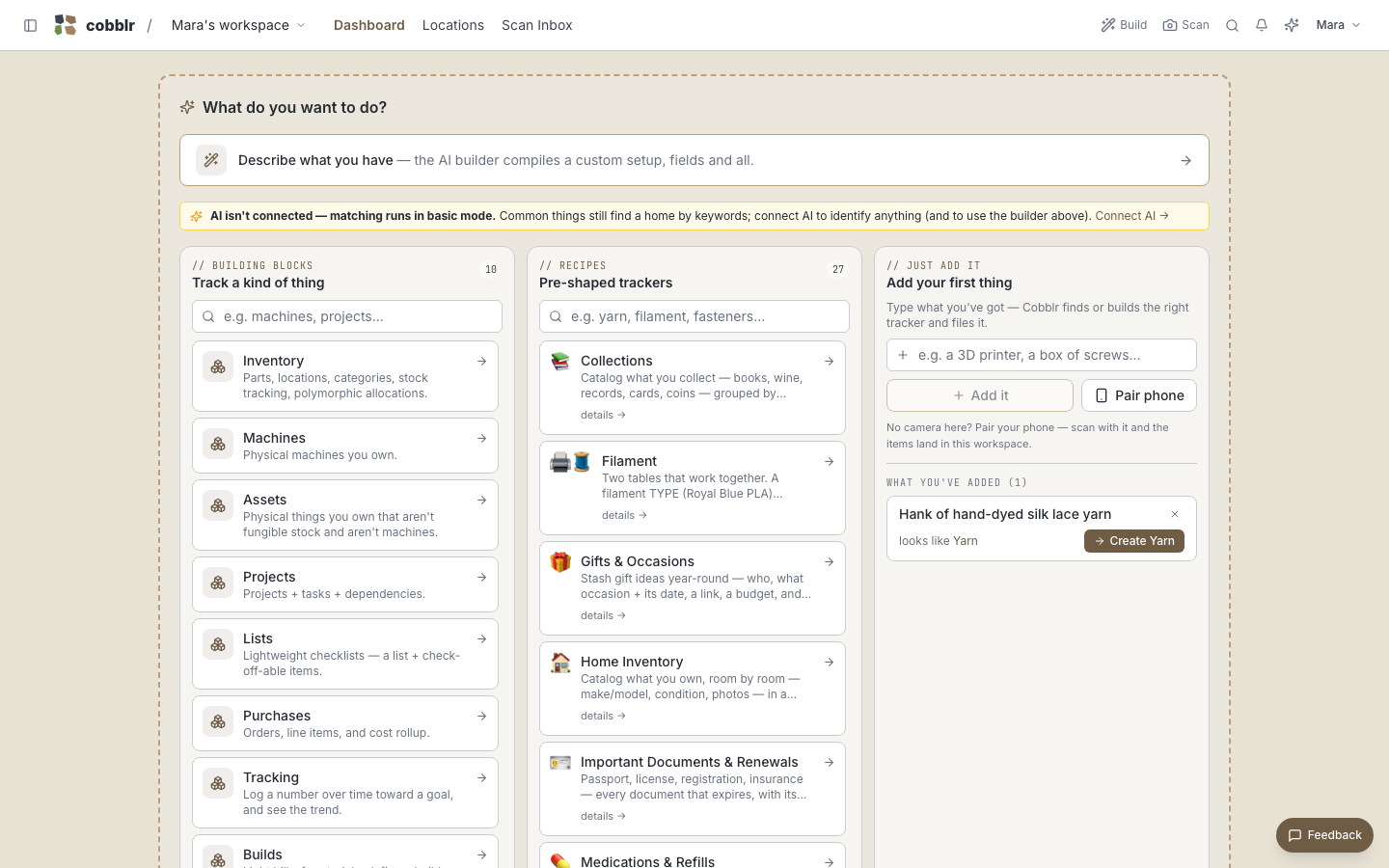
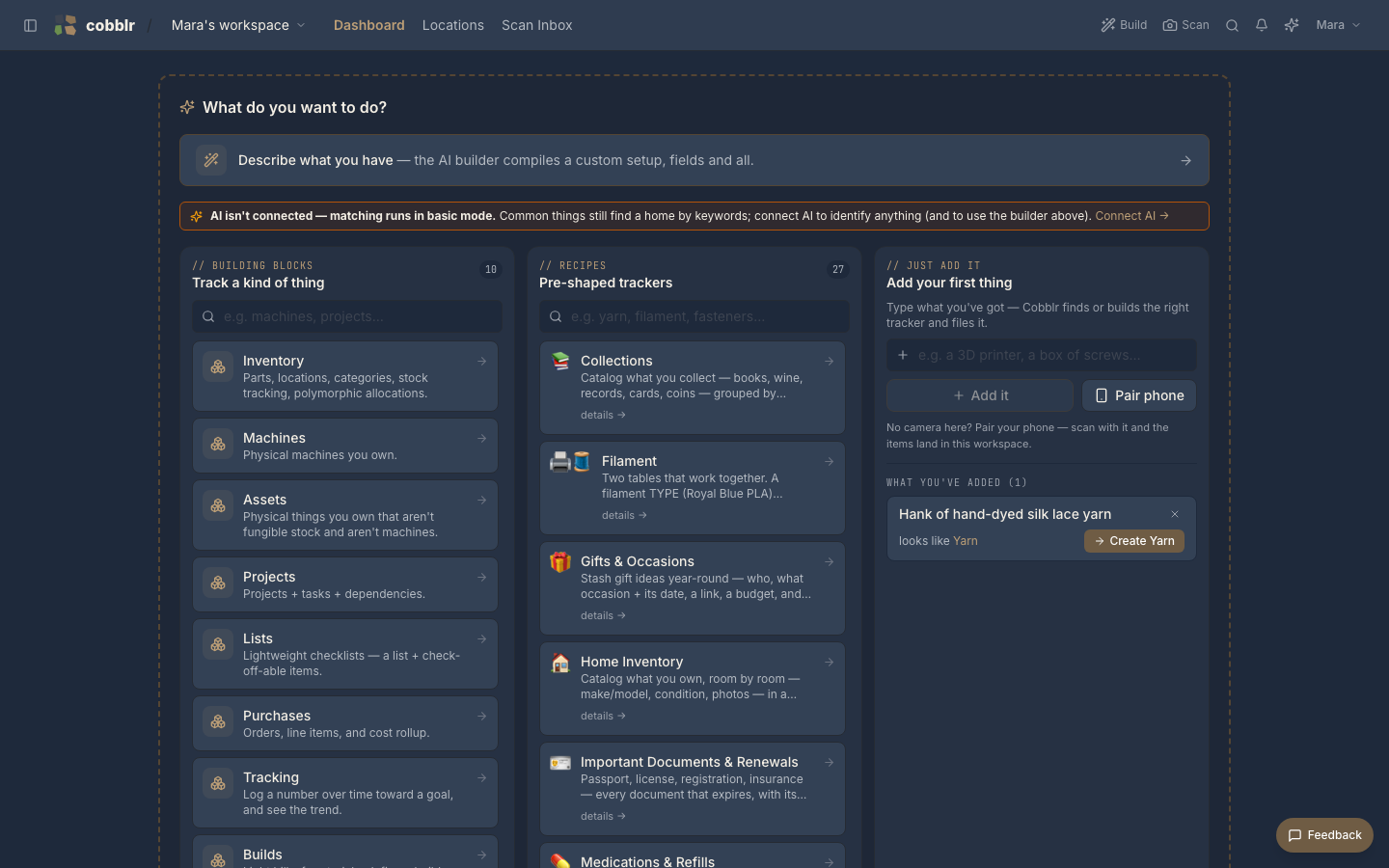
Scans land in an inbox. Each item shows what Cobblr found, and you confirm it into a module, into a specific instance, with a location. You can work through them one at a time or add a batch at once.
A hardware scanner
Plug in a USB or Bluetooth barcode scanner and every Cobblr page picks it up. There's nothing to configure and no particular screen to be on: scan an item's UPC from anywhere in the app and it lands in the inbox, with a toast that jumps you there.
Get a 2D scanner rather than a laser-only 1D model. It reads QR codes as well as barcodes, so the same scanner that captures items also reads your location labels and drives the filing funnel. For picking and setting one up, see Barcode & QR scanners.
Your phone and your desktop
Working at a desktop? Hit Pair phone: your signed-in desktop shows a QR code, you scan it with the phone, and the phone is signed in to that workspace on the spot, no password typed on the phone at all. From then on it's the camera: everything it scans lands in the same inbox your desktop is showing.
Capture first
You don't have to set anything up before you start. Scan a pile of stuff, and Cobblr helps sort it into the right place afterward. Structure can come once you see what you've got.
Privacy
Barcode lookups reach third-party product catalogs. On a self-hosted install you control exactly which ones, or turn them off entirely. See Self-hosting -> Privacy.